01 / The One Rule
Only two moves are reported to Facebook: Booking Completed and Won. A lead tagged bad lead or spam likely is never reported, even if its card is moved by mistake.
| What happened | Move the card to | Also do | Reported to Facebook? |
|---|---|---|---|
| Spam, fake, vendor pitch or not a fit | Bad Lead | Nothing. The bad lead tag is added automatically | Never |
| Discovery call held and the lead is a real prospect | Booking Completed | Nothing | Yes: Qualified Call |
| Lead did not show up for the call | Booking No Show | Try to rebook | No |
| Lead signed | Set Status: Won | Nothing | Yes: Client Won |
| Not interested or went cold | Lost | Nothing | No |
New Lead and Booking Requested are filled in automatically. You never need to move a card into them.
02 / Daily Routine
Open MCC Pipeline
In the CRM, go to Opportunities and choose MCC Pipeline in the pipeline menu at the top left. Facebook leads arrive in the New Lead column.
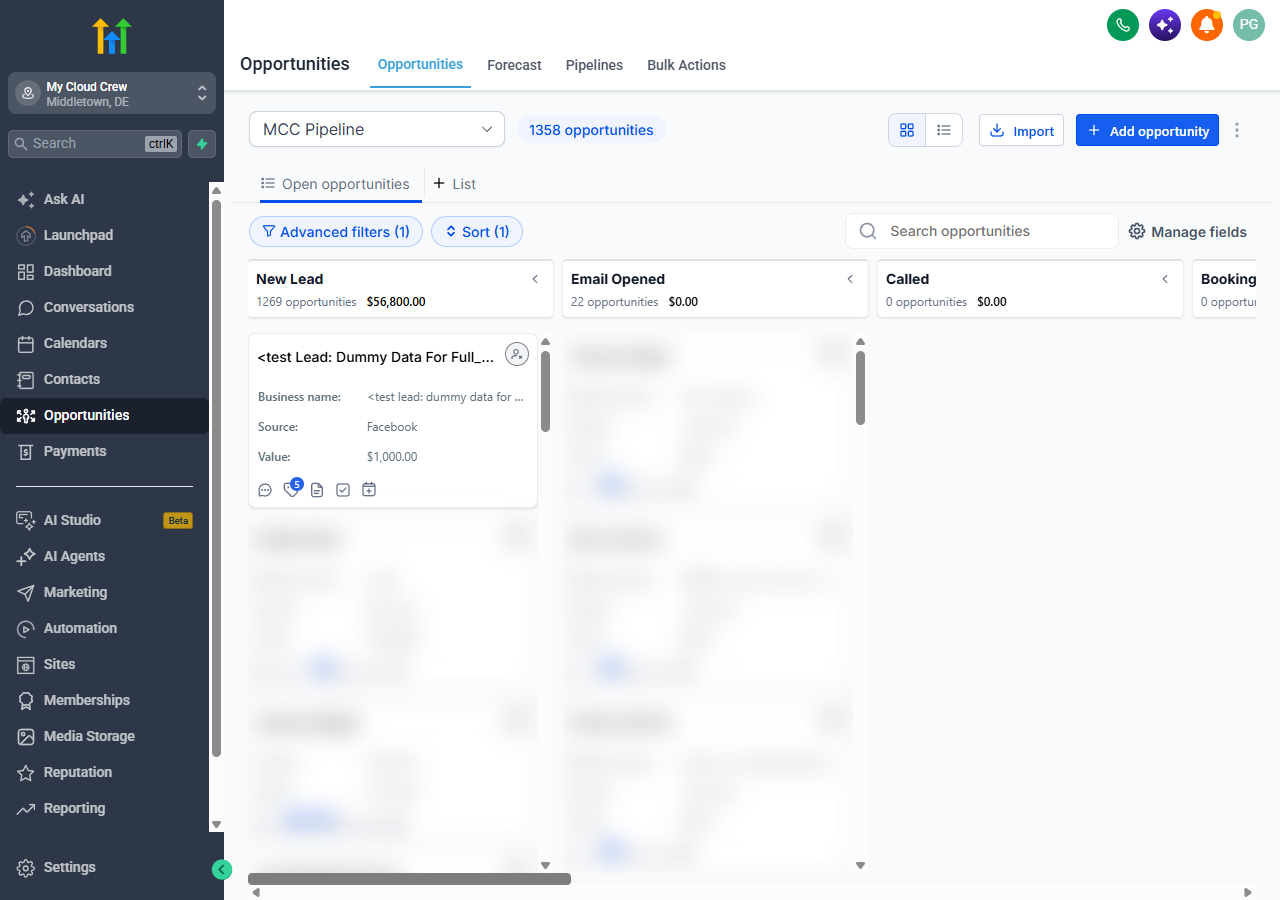
Review every new lead within 24 hours
Open each new card by clicking it. Read the answers from the Facebook form and check the phone number and email. If it is spam, a vendor pitch or clearly not a fit, go to step 4.
Check yesterday's discovery calls
Look at the Booking Requested column. For every call that already happened, move the card to Booking Completed (real prospect) or Booking No Show (did not attend). Do not leave cards sitting in Booking Requested after the call.
Mark bad leads
Move the card to Bad Lead. That is all. The CRM adds the bad lead tag for you, which blocks that lead from ever being reported to Facebook. If you are used to tagging instead, that works too: adding the bad lead tag moves the card to Bad Lead automatically.
Close the loop on wins and losses
When a lead signs, set the card Status to Won. When a lead says no or stops responding, move it to Lost.
03 / How to Move a Card
Open the card
Click the lead's card on the board. The edit window opens with the pipeline, stage and status.
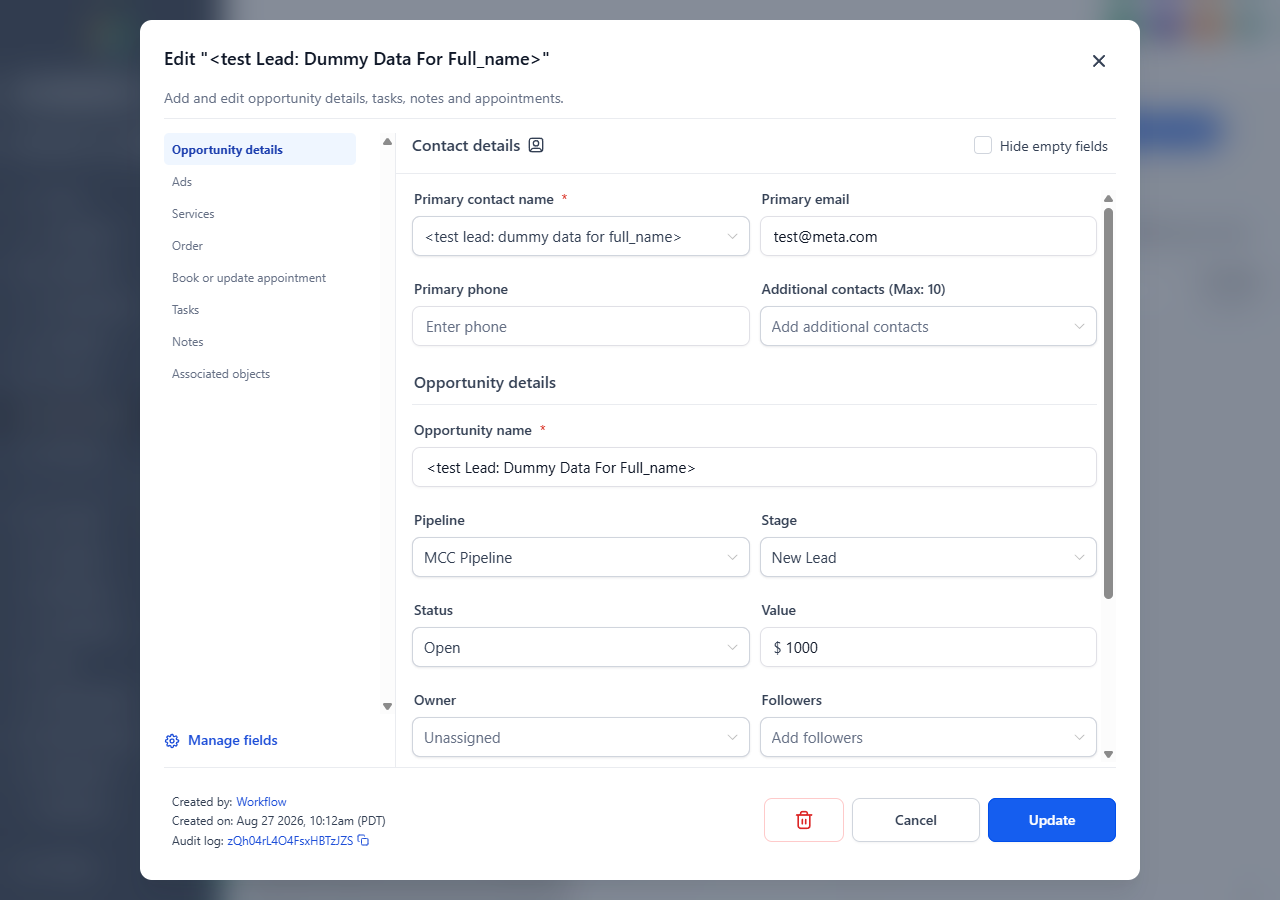
Change the Stage
Click Stage and pick the new stage, for example Booking Completed, Booking No Show, Bad Lead or Lost.
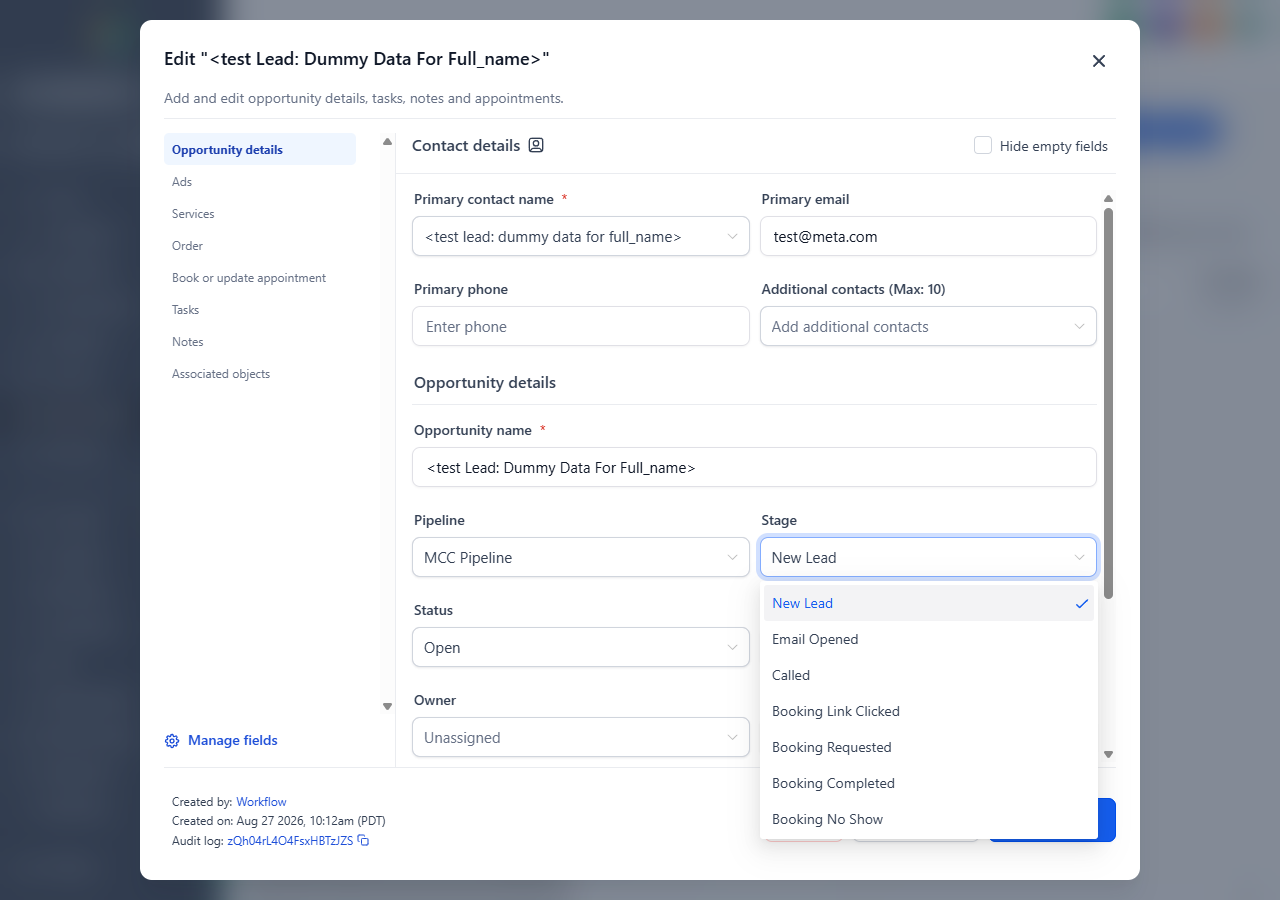
For a signed client, change the Status
Click Status and pick Won. Leave the stage where it is.
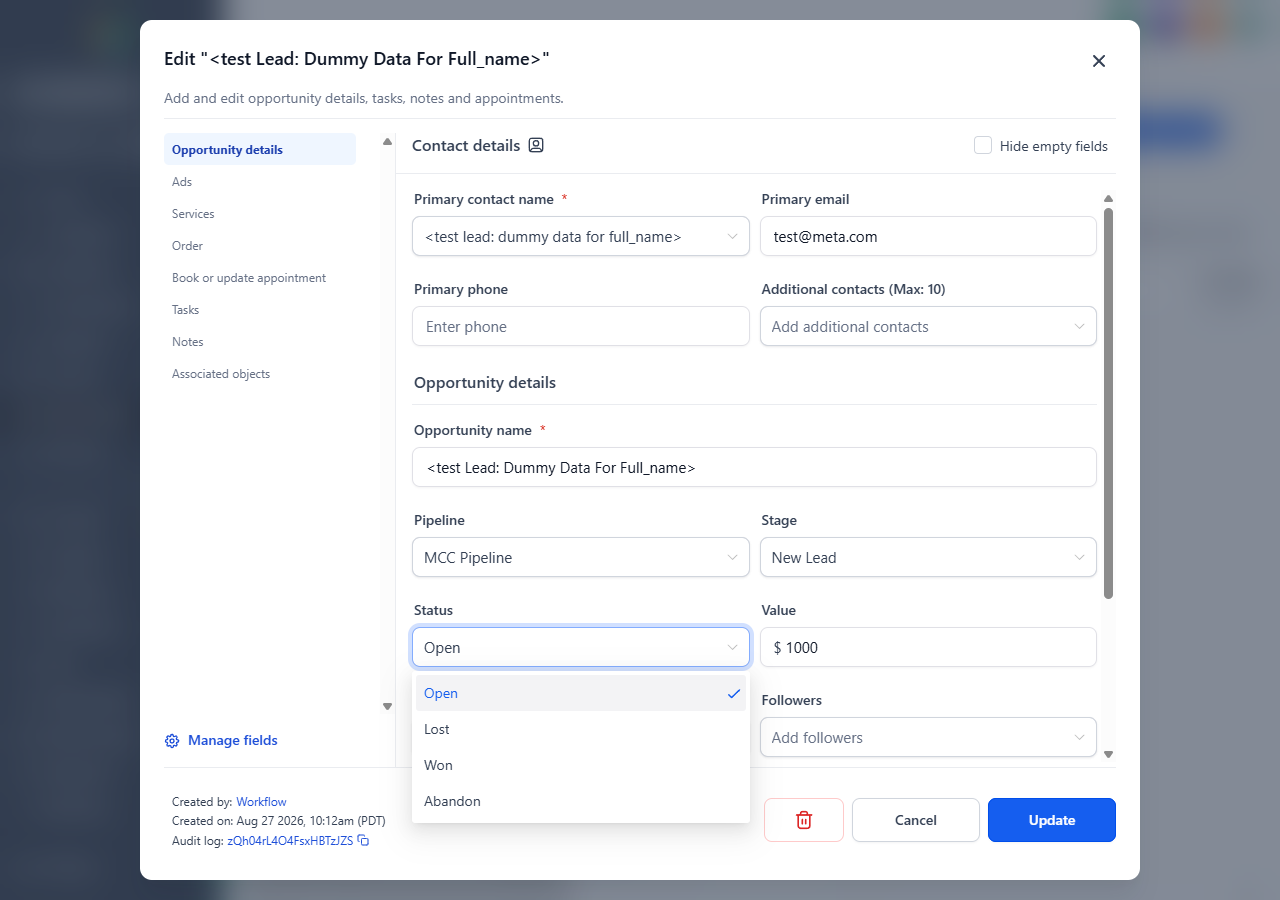
Click Update
Nothing is saved until you click Update at the bottom right. Dragging a card to another column on the board works too.
04 / Common Mistakes
You only need to work in Opportunities
Moving a card to Bad Lead adds the tag, and adding the tag moves the card. You never need to do both.
Leaving cards in Booking Requested after the call
A call that happened but was never moved to Booking Completed is a good lead Facebook never hears about.
Moving spam to Booking Completed
Vendors and spammers sometimes book calls. Only move a card to Booking Completed if the person is a real prospect.
Working the PPC pipeline for Facebook leads
Facebook leads now live in MCC Pipeline. The PPC pipeline still holds website and Google leads.
05 / Questions
If you are unsure whether a lead is real, leave it where it is and ask in #mcc-sales-leads. A card left alone is better than a card in the wrong stage.